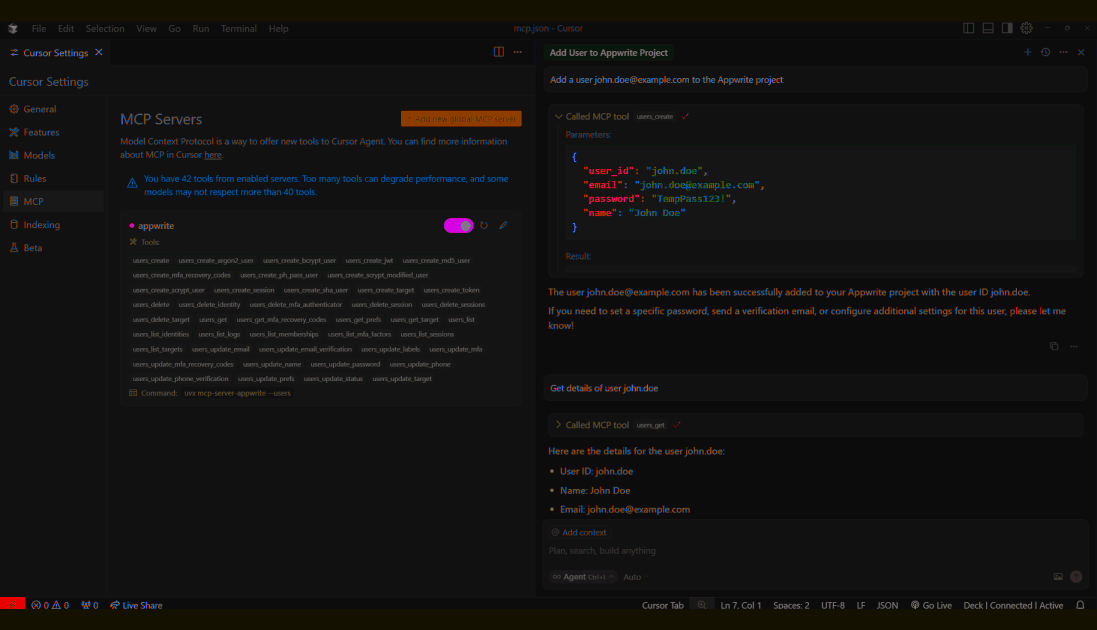
Learn how you can add the indobase MCP servers to Cursor to interact with both the indobase API and documentation.
Before you begin, ensure you have the following pre-requisites installed on your system:
Open the Cursor Settings page, head to the MCP tab, and click on the Add new global MCP server button. This will open an mcp.json file in your editor.
Choose which MCP server you want to configure:
Update the mcp.json file to include the API server:
{
    "mcpServers": {
        "indobase-api": {
            "command": "uvx",
            "args": [
                "mcp-server-appwrite",
                "--users"
            ],
            "env": {
                "APPWRITE_API_KEY": "your-api-key",
                "APPWRITE_PROJECT_ID": "your-project-id",
                "APPWRITE_ENDPOINT": "https://<REGION>.cloud.indobase.io/v1"
            }
        }
    }
}
Configuration:
- Replace
your-project-idwith your actual indobase project ID - Replace
your-api-keywith your indobase API key - Replace
<REGION>with your indobase Cloud region (e.g.,nyc,fra)
Update the mcp.json file to include the docs server:
{
  "mcpServers": {
    "indobase-docs": {
      "command": "npx",
      "args": [
        "mcp-remote",
        "https://mcp-for-docs.indobase.io"
      ]
    }
  }
}
You can also directly add the MCP servers to Cursor using the following links:


Once you save the details, Cursor will connect with the MCP server(s) and load all available tools. You may need to restart Cursor if it is unable to start the MCP server.
Enable other API MCP tools
To enable additional API tools, learn more about command-line arguments.
Open Cursor Agent and test your MCP integrations. You can try out the following example prompts based on the MCP server you have configured:
Example prompts:
Create a new user in my indobase projectList all databases in my projectShow me the collections in my databaseCreate a new document in my collectionDelete a specific user by ID
Example prompts:
How do I set up real-time subscriptions in indobase?Show me how to authenticate users with OAuthWhat are the best practices for database queries?How do I implement file uploads with indobase Storage?Show me an example of using indobase Functions