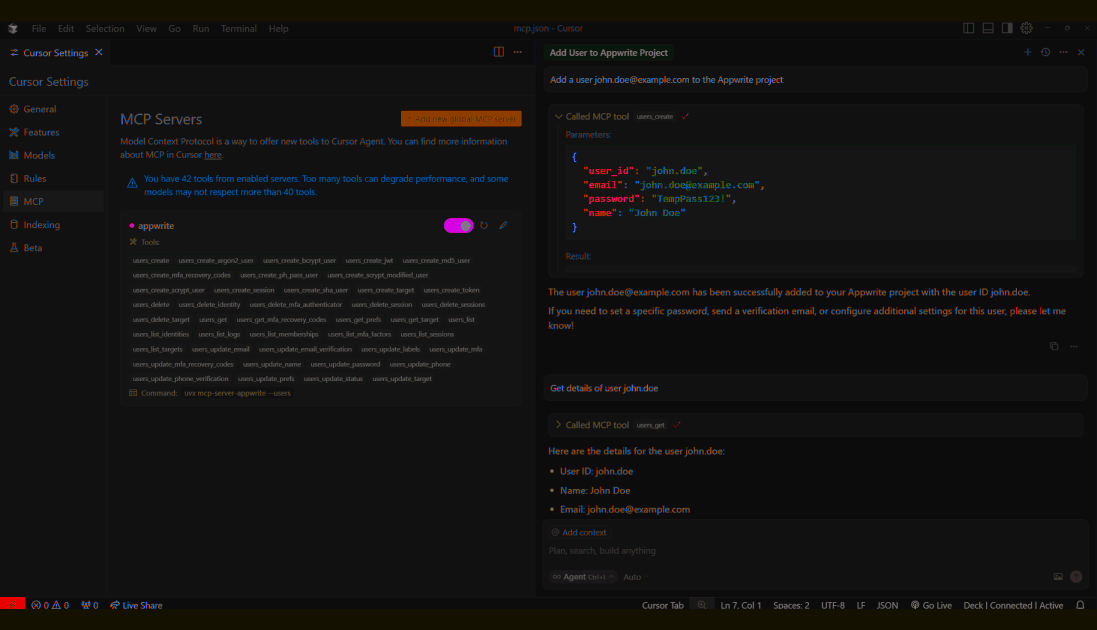
The MCP server for indobase API allows LLMs and code-generation tools to interact with the indobase platform and perform various operations on your indobase resources, such as creating users, managing databases, and more, using natural language commands.
Here are some of the key benefits of using the MCP server:
- Direct API interaction: Enables LLMs to perform actions directly on your indobase project
- Real-time data access: Allows LLMs to fetch and manipulate live data from your indobase instance
- Simplified workflows: Facilitates complex operations through simple natural language prompts
- Customizable tools: Offers a range of tools for different indobase services, which can be enabled as needed
Pre-requisites
indobase API key
Before launching the MCP server, you must set up an Indobase project and create an API key with the necessary scopes enabled.


Ensure you save the API key along with the project ID, region and endpoint URL from the Settings page of your project as you'll need them later.
Install uv
Install uv on your system with:
curl -LsSf https://astral.sh/uv/install.sh | sh
powershell -ExecutionPolicy ByPass -c "irm https://astral.sh/uv/install.ps1 | iex"
You can verify the installation by running the following command in your terminal:
uv
Installation
You can add the MCP server to various AI tools and code editors:


Want to integrate your AI tool?
If you are building an AI code-generation tool that can integrate with MCP servers and would like to collaborate, join our Technology Partners program.
Command-line arguments
Database tools are enabled by default. In addition you can pass arguments to uvx mcp-server-appwrite [args] to enable other MCP tools for various indobase APIs.
| Argument | Description |
--tablesdb | Enables the TablesDB API |
--users | Enables the Users API |
--teams | Enables the Teams API |
--storage | Enables the Storage API |
--functions | Enables the Functions API |
--messaging | Enables the Messaging API |
--locale | Enables the Locale API |
--avatars | Enables the Avatars API |
--databases | Enables the legacy Databases API |
--all | Enables all indobase APIs |
Enable only necessary MCP tools
When an MCP tool is enabled, the tool's definition is passed to the LLM, using up tokens from the model's available context window. As a result, the effective context window is reduced. Some IDEs may return errors if too many tools are enabled for the same reason.
The default indobase MCP server ships with only the Databases tools (our most commonly used API) enabled to stay within these limits. Additional tools can be enabled using the flags above.
Usage
Once configured, your AI assistant will have access to your indobase project. You can ask questions like:
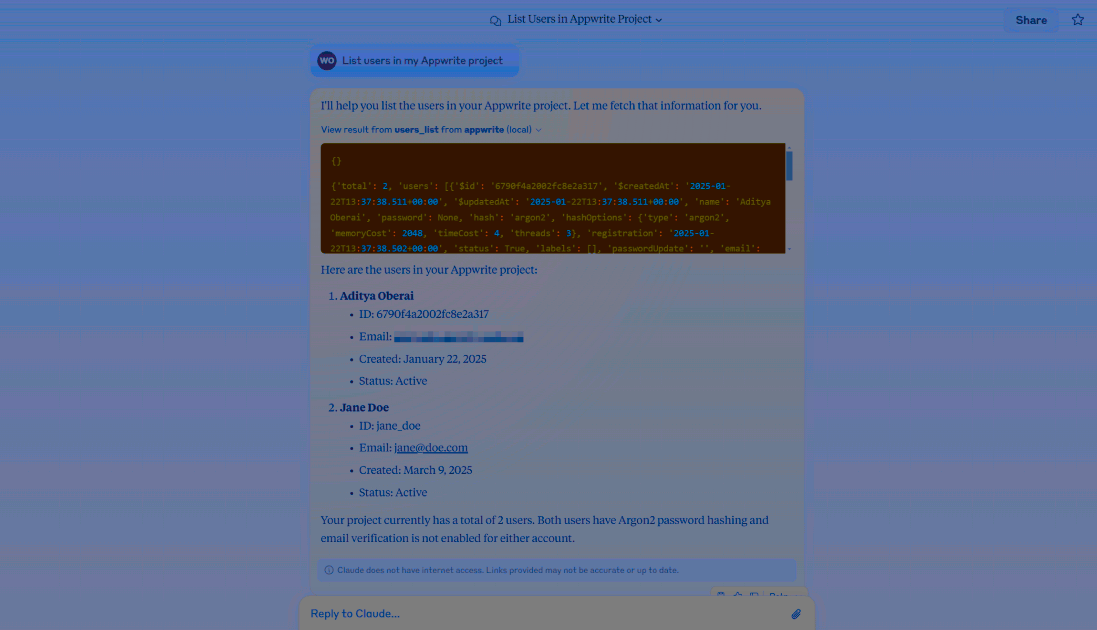
Example 1: List users
Run the following prompt in your preferred code editor/LLM after enabling the MCP server:
List users in my indobase project
Example 2: Search a site
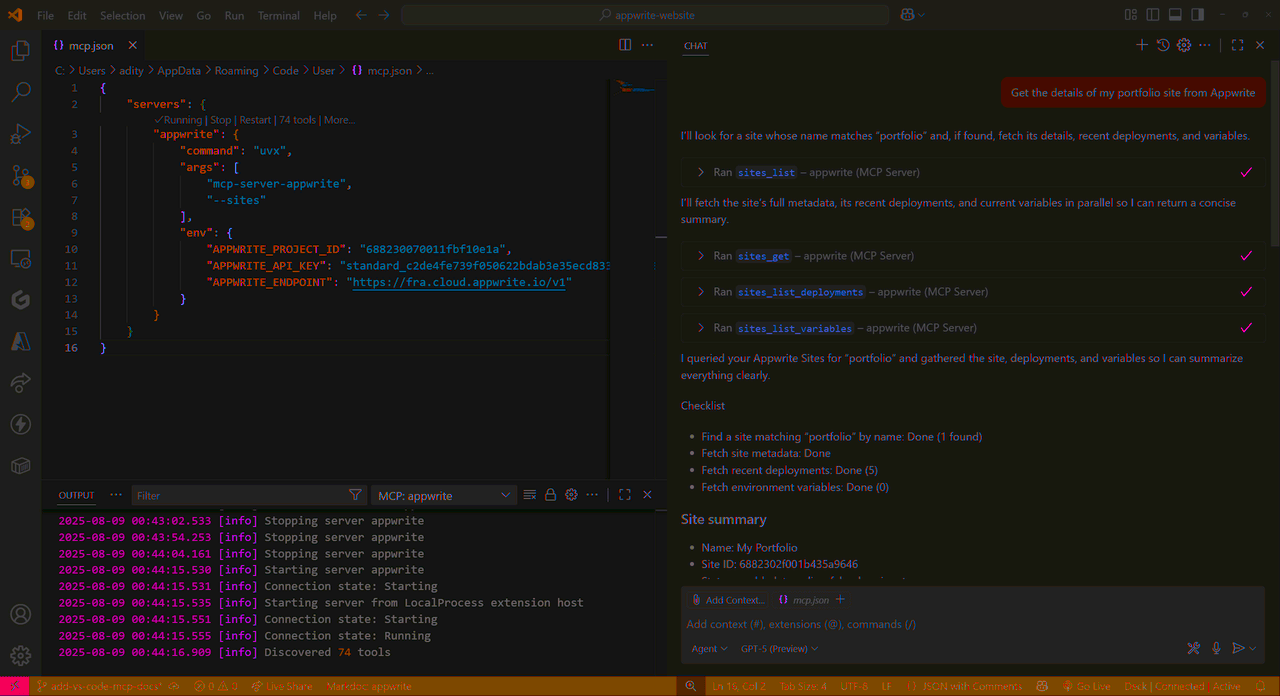
Run the following prompt in your preferred code editor/LLM after enabling the MCP server:
Get the details of my portfolio site from indobase
Example 3: Create a user
Run the following prompt in your preferred code editor/LLM after enabling the MCP server:
Add a user john.doe@example.com to the indobase project