

Each deployed site can have its own domain, which can be indobase-generated or custom. You can use this domain to consume web apps deployed on indobase Sites. indobase generates TLS certificates to enforce HTTPS on all indobase Sites domains. These domains are safe to use and access in production.
Learn about Sites development >
Generated domains
Each site automatically receives a unique indobase-generated domain that's ready to use immediately.
- In the indobase Console's sidebar, click Sites.
- Under the Domains tab, you'll find the domain generated by indobase.
The domain usually has this format:
https://64d4d22db370ae41a32e.indobase.network
Branch and Commit URLs
Additional to the site URL, indobase also generates a URL for the branch and commit that your site has been deployed from. The branch URL will remain consistent for all deployments made for code pushed to a specific branch, whereas the commit URL will be updated every time a new deployment is made via the Git integration (i.e. when code is pushed to your repo).
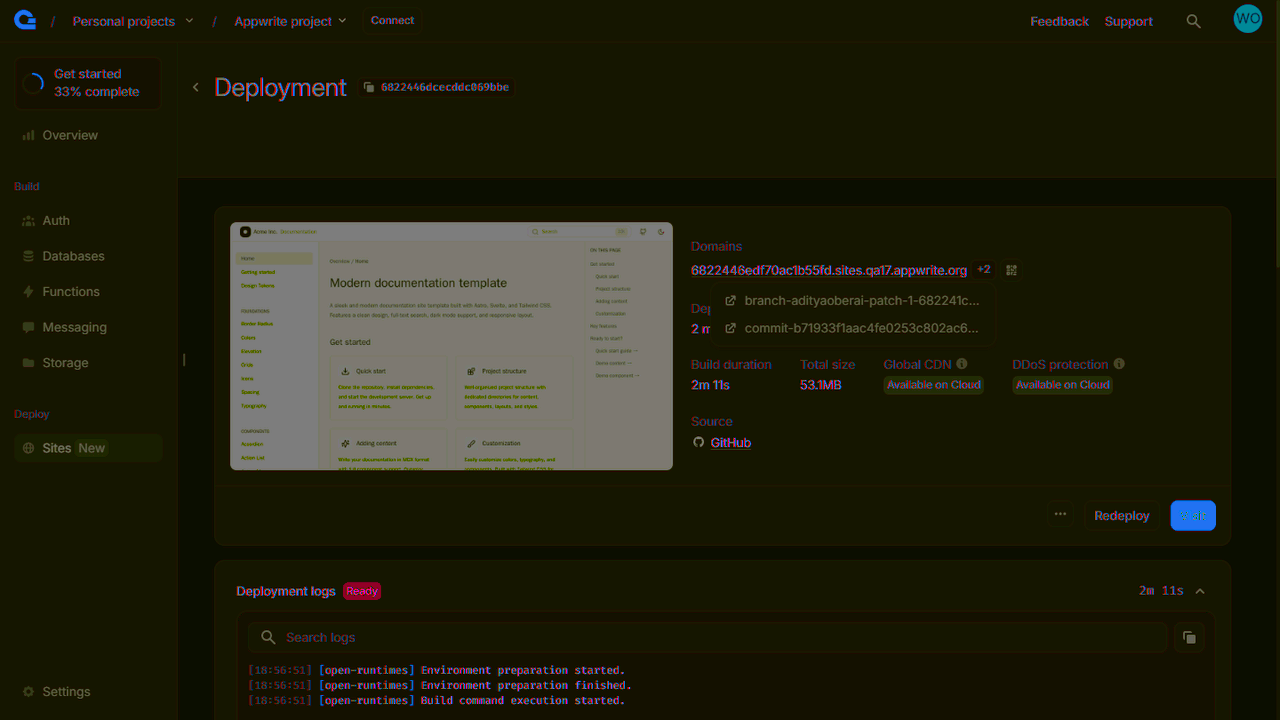
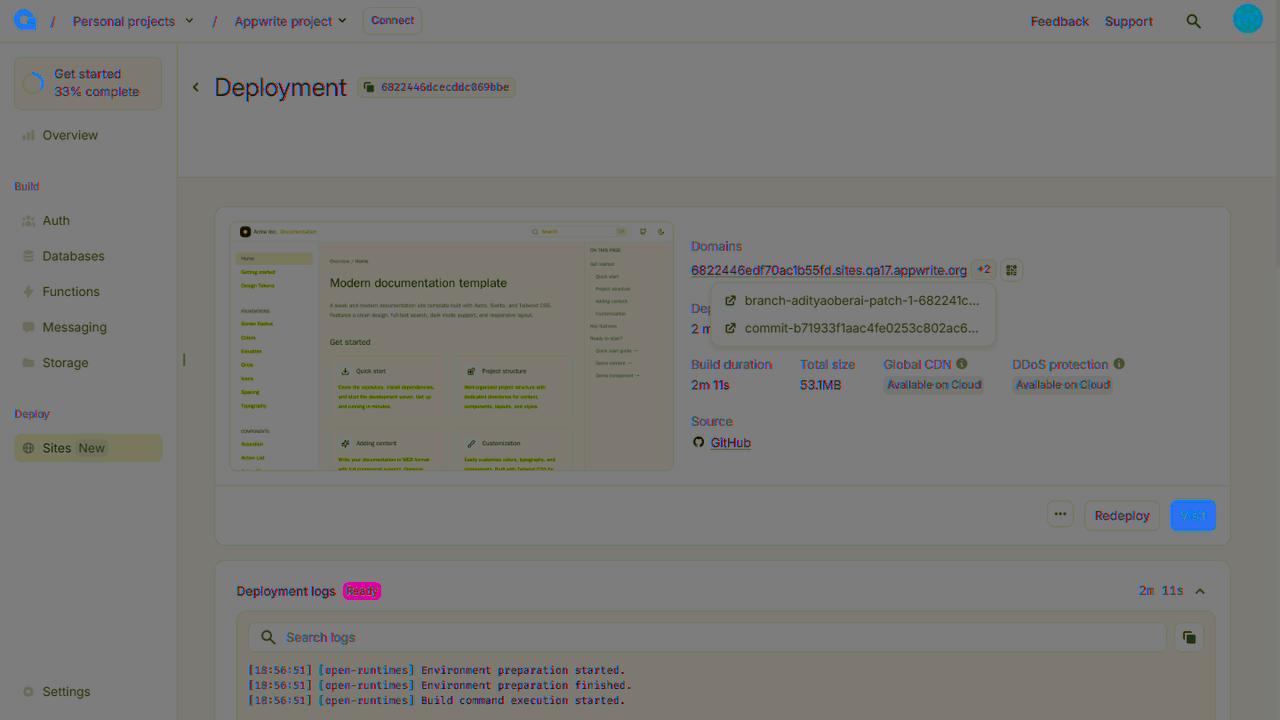
To find the branch and commit URLs of any deployment, follow these steps:
- Navigate to your site on indobase Console.
- Head to the Deployments tab and click on any deployment.
- In the Domains section, click on the +2 next to the mentioned domain.
Add a custom domain
You can add your own domain to your indobase site to provide a branded experience for your users. There are two ways to add a custom domain, depending on whether you're using a subdomain or an apex domain.
Add an apex domain with NS records
Apex domains (also known as root domains) are domains without a subdomain prefix, like example.com instead of www.example.com. Unlike subdomains, apex domains cannot use CNAME records due to DNS protocol limitations.
To add an apex domain via NS records:
- Navigate to your site in the indobase Console.
- Head to the Domains tab and click on Add domain.
- Enter your apex domain (e.g.,
example.com). - Select the appropriate domain rule type (Active deployment, Git branch, or Redirect) and configure its settings. See the Domain rule types section for details.
- indobase will provide NS record information.
- Go to your domain registrar and update the NS records for your domain to point to
ns1.indobase.zoneandns2.indobase.zone. - Return to the indobase Console and wait for the verification process to complete.
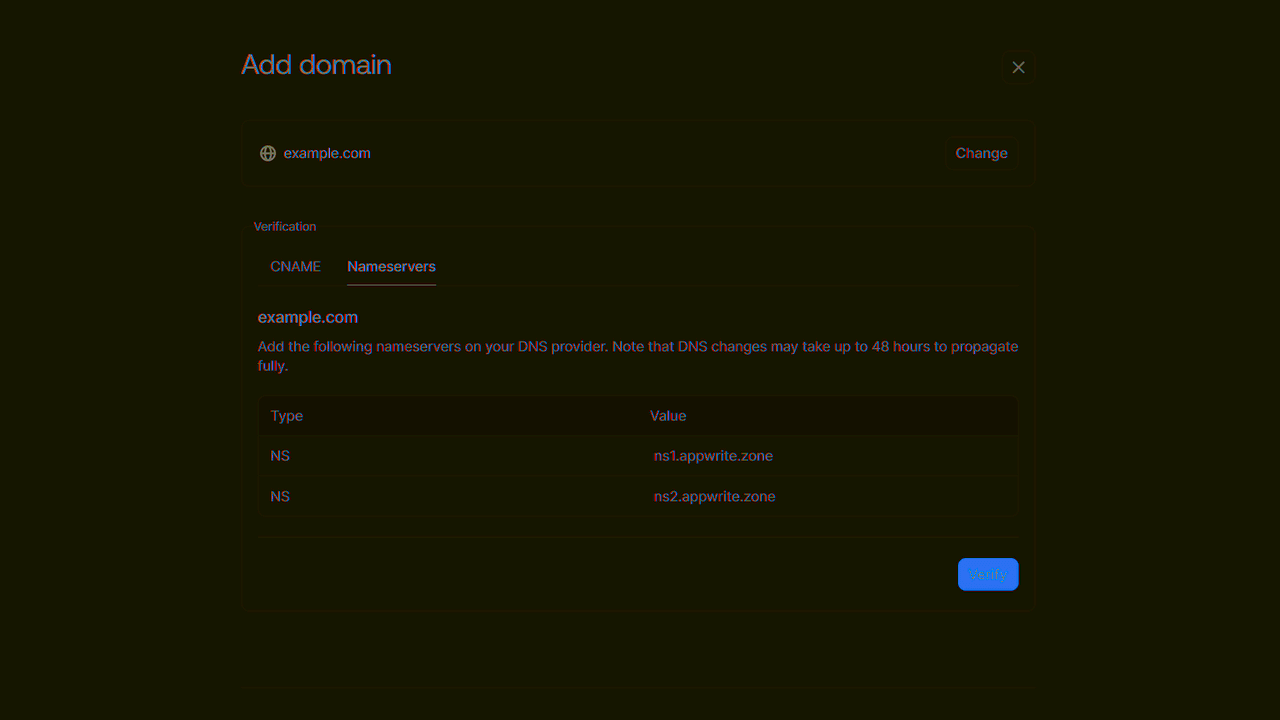
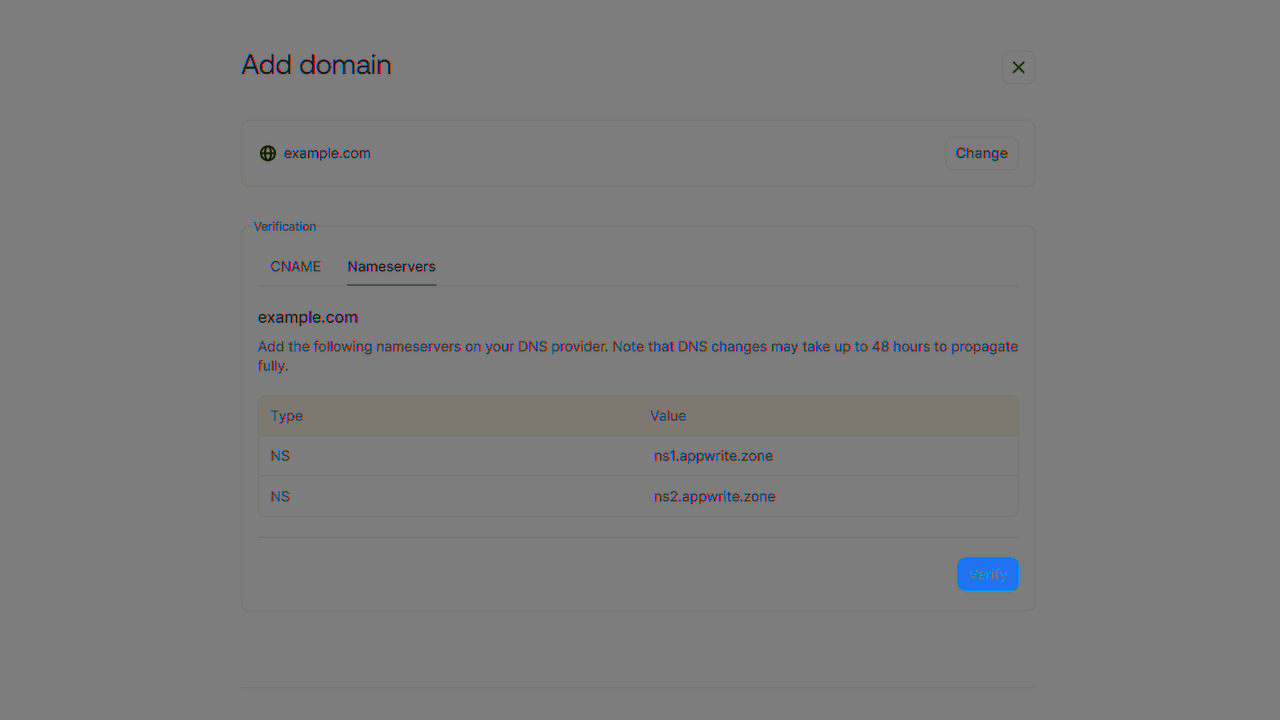
DNS changes can take up to 48 hours to fully propagate across the internet. During this time, your domain might not be accessible or might show inconsistent behavior.
Why indobase uses NS records instead of A records
By DNS standards (RFC), apex domains cannot use CNAME records, only A or AAAA records, which require pointing to fixed IP addresses. Using A records would lock indobase into specific IP addresses, limiting our ability to optimize routing, scale our infrastructure, or make changes as needed. To avoid this constraint and maintain flexibility, indobase offers DNS delegation through NS records so we can manage routing on your behalf.
Using indobase's DNS servers for your apex domain provides several benefits:
- Proper SSL certificate management
- Automatic DNS configuration
- Secure and reliable DNS resolution
When you change your domain's NS records, you're delegating DNS management to indobase. This means any existing DNS records (like MX records for email) will need to be recreated in indobase's DNS configuration.
Learn more about indobase DNS server
Add an apex domain without changing nameservers
To add an apex domain without changing your NS records via CNAME flattening:
- Navigate to your site in the indobase Console.
- Head to the Domains tab and click on Add domain.
- Enter your apex domain (e.g.,
example.com). - Select the appropriate domain rule type (Active deployment, Git branch, or Redirect) and configure its settings. See the Domain rule types section for details.
- Copy the CNAME record provided by indobase.
- Copy the CAA record provided by indobase.
- In your DNS provider's settings, create an ALIAS, ANAME, or CNAME record at the apex (depending on what your provider supports).
- Point the record to the indobase hostname provided in the console.
- Add the CAA record to your DNS provider's settings, also pointed at the apex.
- Return to the Site settings and wait for verification status.
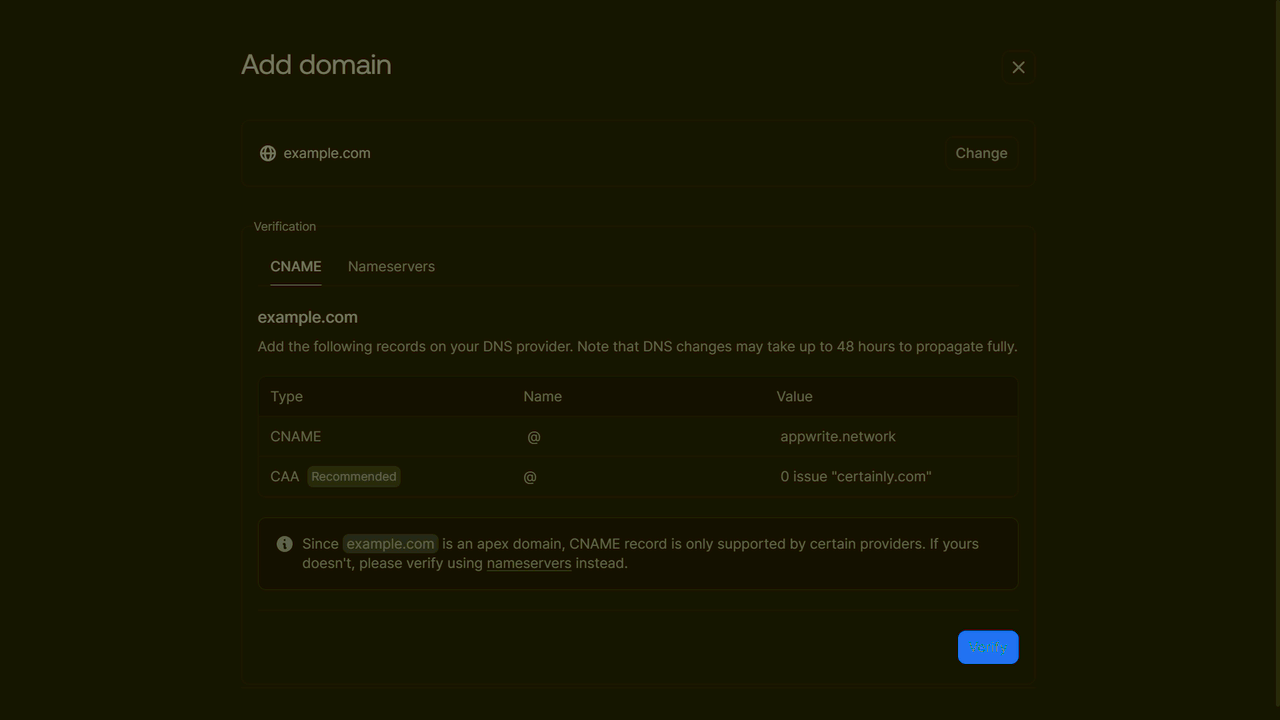
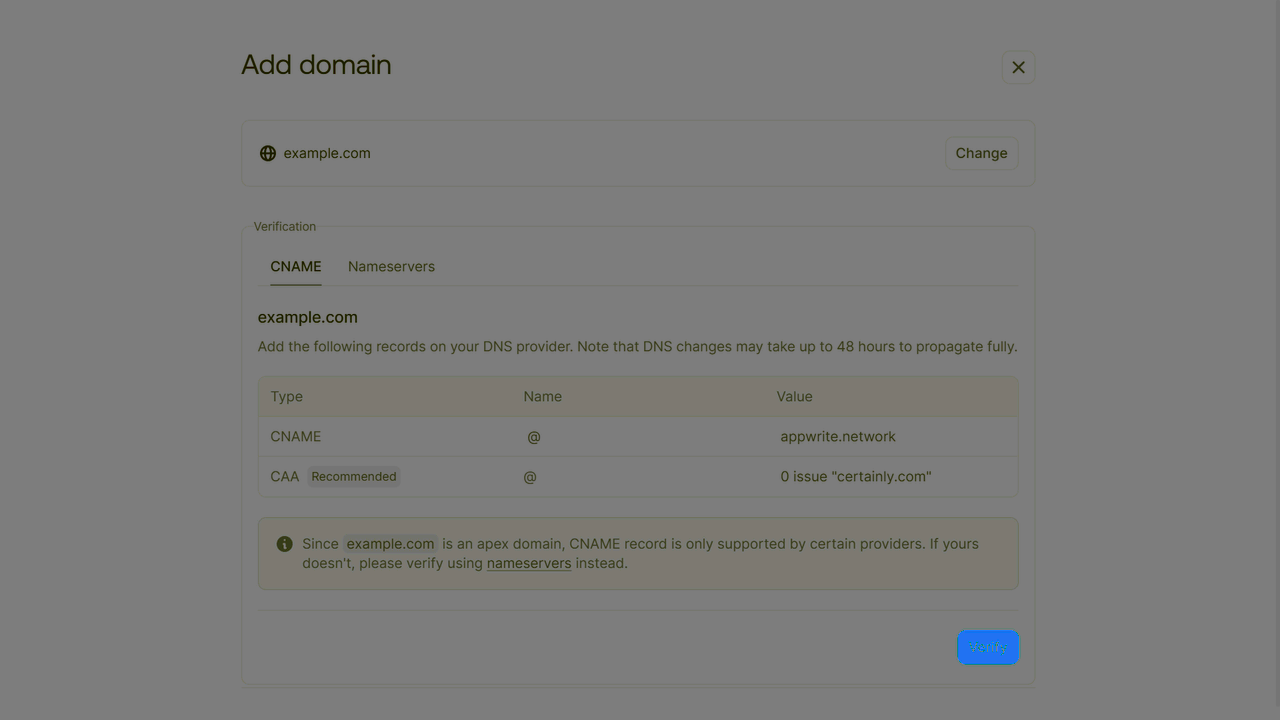
DNS changes can take up to 48 hours to propagate. Once verified, your apex domain will be ready to use with full control over your remaining DNS configuration.
Add a subdomain with CNAME
Subdomains (like www.example.com or app.example.com) are set up using CNAME records, which point to indobase's hostname.
To add a subdomain:
- Navigate to your site in the indobase Console.
- Head to the Domains tab and click on Add domain.
- Input your subdomain (e.g.,
www.example.com). - Select the appropriate domain rule type (Active deployment, Git branch, or Redirect) and configure its settings. See the Domain rule types section for details.
- Copy the specified CNAME record and add it to your domain registrar.
- Return to the Site settings and wait for verification status.
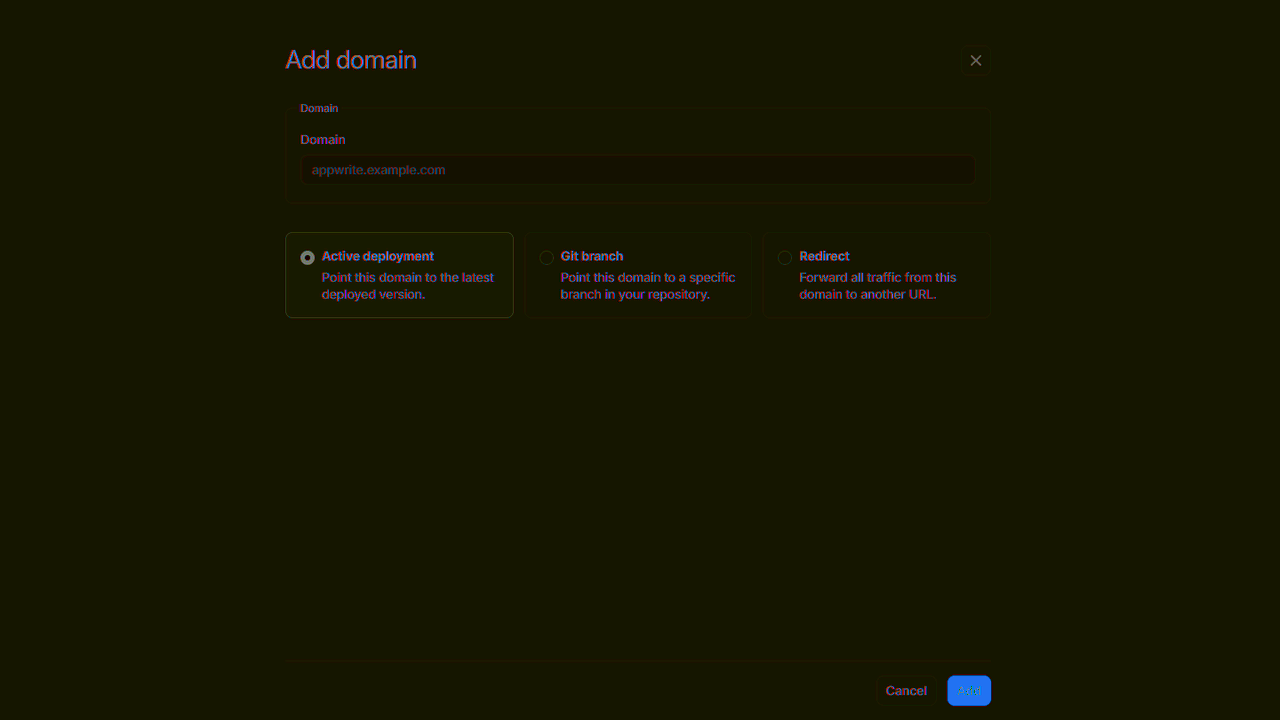
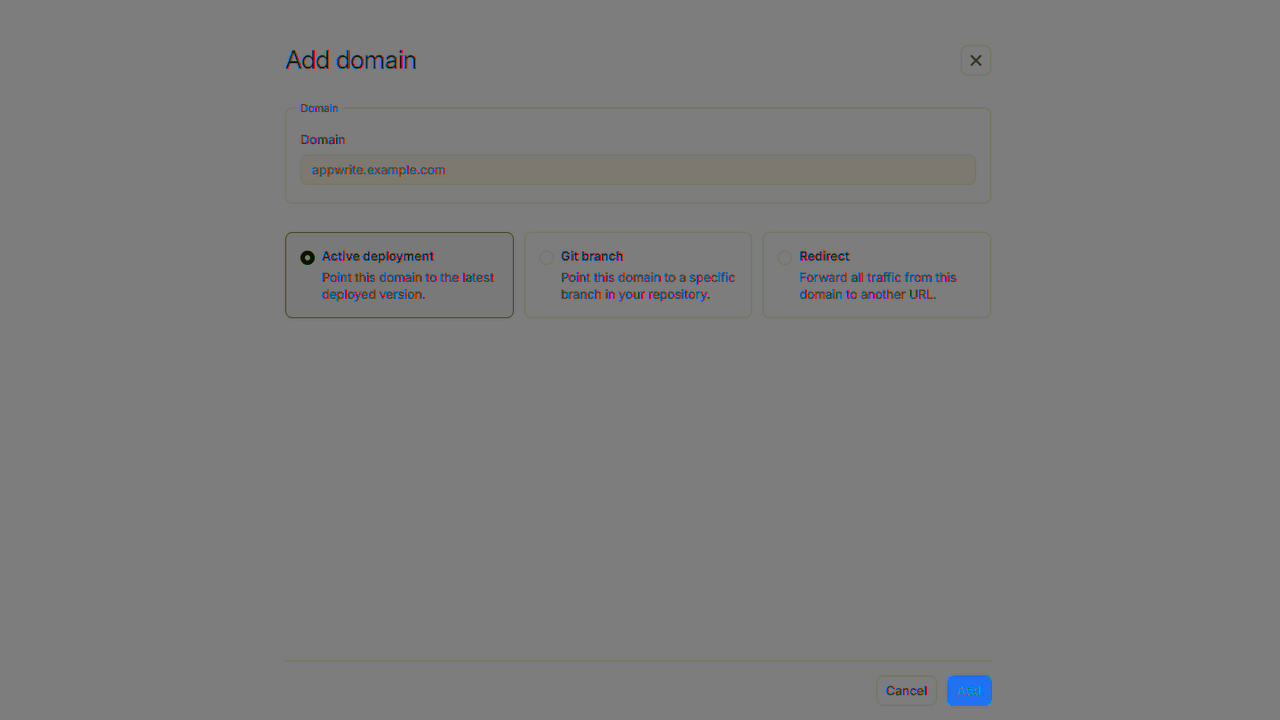
DNS records can take up to 48 hours to propagate. Once verified, the domain is ready to use.
Domain rule types
When adding a custom domain to your indobase site, you'll need to select one of the following rule types that determine how your domain will behave:
Active deployment
Points your domain to the latest deployed version of your site. This is the most common option for production domains.
- When selected, your domain will always serve the most recent successful deployment
- Any new deployments will automatically be available on this domain
Git branch
Points your domain to a specific branch in your repository. This is useful for testing or staging environments.
- When selected, you'll need to choose a specific branch from your connected repository
- Your domain will always serve the latest successful deployment from that branch
- This allows you to have different domains for different branches (e.g., staging.example.com for your staging branch)
Redirect
Forwards all traffic from your domain to another URL. This is useful for domain migrations or creating shortcuts.
- When selected, you'll need to specify the destination URL
- You can choose from various HTTP status codes for the redirect:
- 301 Moved permanently
- 302 Found
- 303 See other
- 307 Temporary redirect
- 308 Permanent redirect
Path and query parameters in redirects
When you redirect an added domain to another URL, any additional path and queries will be ignored.
For example, if a domain example.com is set to redirect to indobase.io, example.com/docs?id=123 will also redirect to indobase.io.